Autor da secção: Laiton Hedley
Transformed Variables
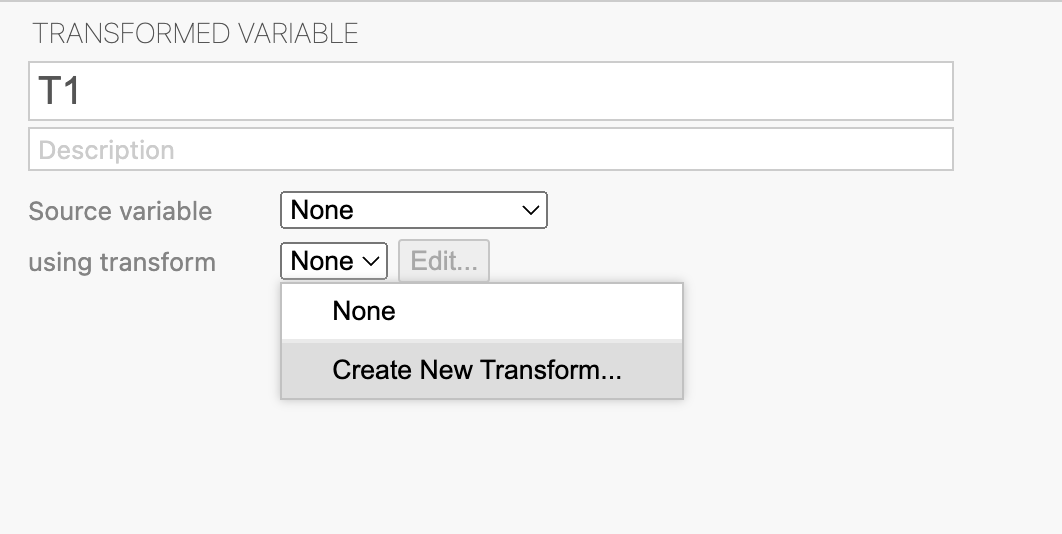
Transformed variablesare better suited for more complex transformations (such as reverse scoring and recoding variables) and allow the same transform to be applied across multiple columns of data. To add a new transformed variable to a data set, select theAdd(variable) button from theDatatab. UnderTransformed VariableselectAppend, this will add a new Transformed column to the very right of the data set. To configure the Transformed variable, select eitherSetupfrom theDatatab, or double click on the column header. By doing so, the following variable editor will appear:
Here the new column can be given a name and a description - this can be helpful if you wish to use the same transformation multiple times. To perform the transformation, select the
Source variable, that is the column of data to transform. Additionally, selectusing transform, which allows for either the selection of an existing transformation or the ability to create a new one by selectingCreate New Transform.... When creating a new transformation, a formula editor (like the computed variables option) will appear. The formula editor (via this option) requires the use of the$sourcevariable to refer to the source variable selected earlier.For example, there is a survey item that needs to be reversed score. By using the
New Transformed Variableoption, the item can be reverse scored with the following formula:
7 - $sourceIn this example,
$sourcewould be item_3 and we are assuming a 6-point Likert scale (hence the 7 minus):Applying this will yield results where 6 becomes 1, 5 becomes 2, 4 becomes 3, and so on:
Table 6 Example of Reverse Scoring Item_1
Item_2
Item_3
7 - $source
4
3
3
4
3
4
6
1
4
4
2
5
Once created, this transformation can be applied across any number of such variables (such as items_1, items_2, and so on) – we will explore this shortly.
Recoding Variables
Transformed variables are also ideal for recoding variables, i.e., recoding
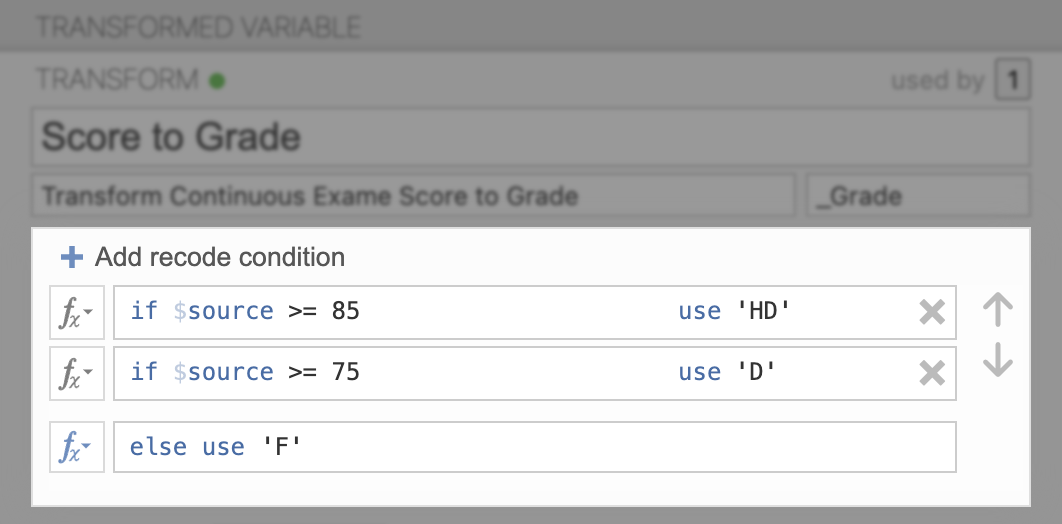
1-4and5-10cigarettes per day toSmokerand0cigarettes per day toNon-smoker, or recoding values greater than or equal to 85 as aHigh Distinction, greater than 75 as aDistinction, etc. Recoding is performed by adding recode conditions with theAdd recode conditionbutton. Each recode condition is made up of a condition, i.e.$source == '1-4', or$source >= 85, and a value to use if that condition is true, i.e.'Smoker','High Distinction'See the following example where grades are being assigned based on exam scores.:
Adding the additional conditions for the C and P grades would result in a transformed variable that would perform the following recoding.
Table 7 Example of Recoding Exam Score
Grade
50
P
90
HD
44
F
76
D
66
C
Note that when evaluating recode conditions, jamovi evaluates each condition one after another, and uses the value from the first condition that resolves to be true. In the above example, this allowed us to express the
Distinctioncondition as$source >= 75, rather than the longer$source < 85 and $source >= 75. Values greater or equal to 85 will already been taken care of by the first condition.
Transforming Multiple Variables
There are situations where multiple variables need to be transformed. For example, there may be a number of items in a survey data set which need to be reverse scored. Instead of recoding each item, one at a time, jamovi conveniently allows for the same transformation to be applied in a single step.
In this approach, select the variables to transform (either by holding down ctrl or ⌘ and clicking the colum headers, or selecting multiple variables under the Variables tab), and then select Transform from the Data tab. For each variable selected, a matching transformed variable will created, with the Source variable set accordingly. This allows you to define a single transform, and apply it across multiple variables at once.